Checkout and Thank You Entries Badge
Overview
Display giveaway entries earned on the checkout and thank you pages to enhance customer engagement. This feature shows customers the exact number of entries they earned from their purchase, encouraging repeat purchases and increasing participation in your giveaway campaigns.
⚠️ Important Requirements
Premium Plan Required: These App Blocks require a Public API Key and are available only with the PREMIUM plan.
Checkout Badge (Shopify Plus Only): The Checkout App Block can only be added on Shopify Plus stores where checkout UI extensibility is available. This is a Shopify limitation, not a Giveaway Ninja restriction.
Thank You Badge (All Plans): The Thank You page badge is available on all Shopify plans.
Setup Requirements
Before installing the badges, you'll need two pieces of information:
-
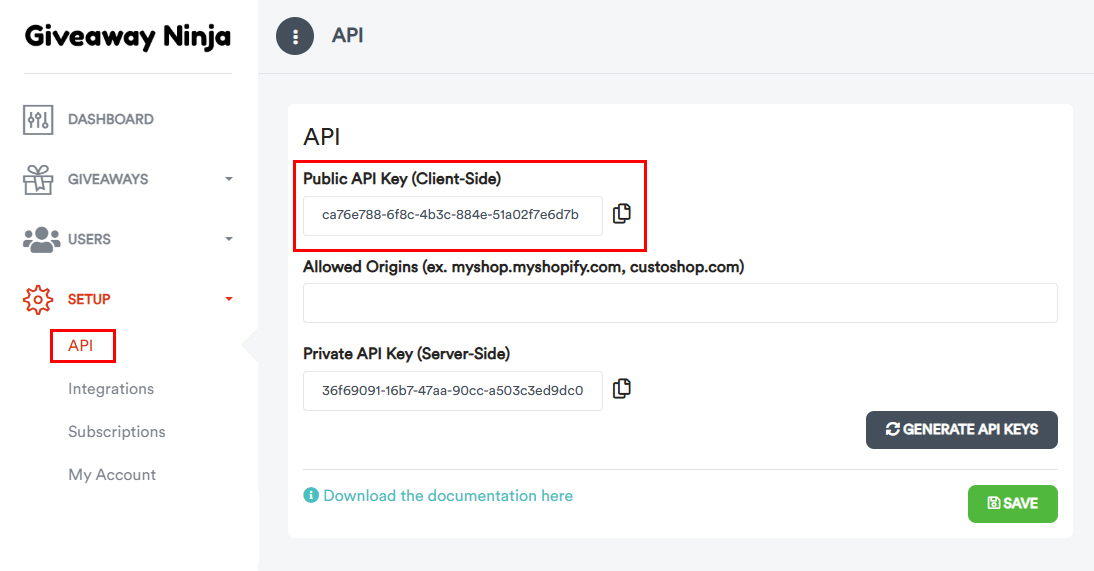
Your Public API Key
Navigate to SETUP / API menu in your Giveaway Ninja Dashboard to find your Public API Key
-
Your Giveaway ID
Open the Giveaway Editor and go to the Giveaway Settings tab to find your Giveaway ID
Installation: Checkout Badge (Shopify Plus Only)
-
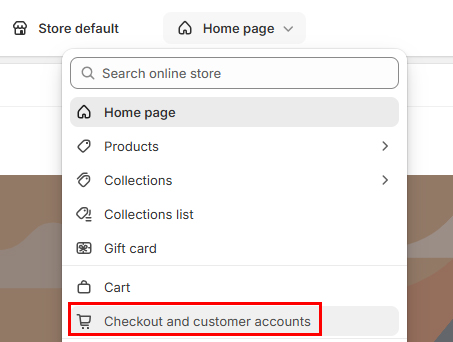
Open Checkout and Customer Account Editor
In the Shopify theme editor, click on Checkout and Customer Account
-
Add the Block
On the Main block section, click ADD BLOCK
-
Locate the App Block
Scroll to the Apps section and find Giveaway Checkout Badge
-
Configure Settings
Enter your Public API Key and Giveaway ID in the block settings
-
Save and Test
Save your changes and test the checkout flow to see the entries badge in action
Installation: Thank You Page Badge (All Shopify Plans)
-
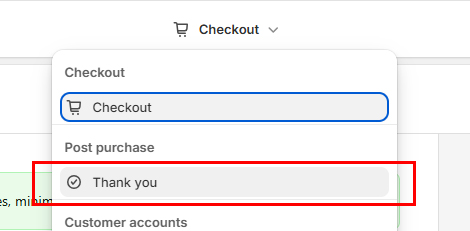
Switch to Thank You Page
In the Shopify theme editor, switch to the Thank You page view
-
Add the Block
Click ADD BLOCK on the page
-
Locate the App Block
Scroll to the Apps section and find Thank You Checkout Badge
-
Configure Settings
Enter your Public API Key and Giveaway ID in the block settings
-
Save and Test
Save your changes and complete a test order to see the badge on the thank you page
-
PLEASE NOTE
If you configured a Minimum order purchase value, the badge won't appear on the preview on the theme editor.
What Customers Will See
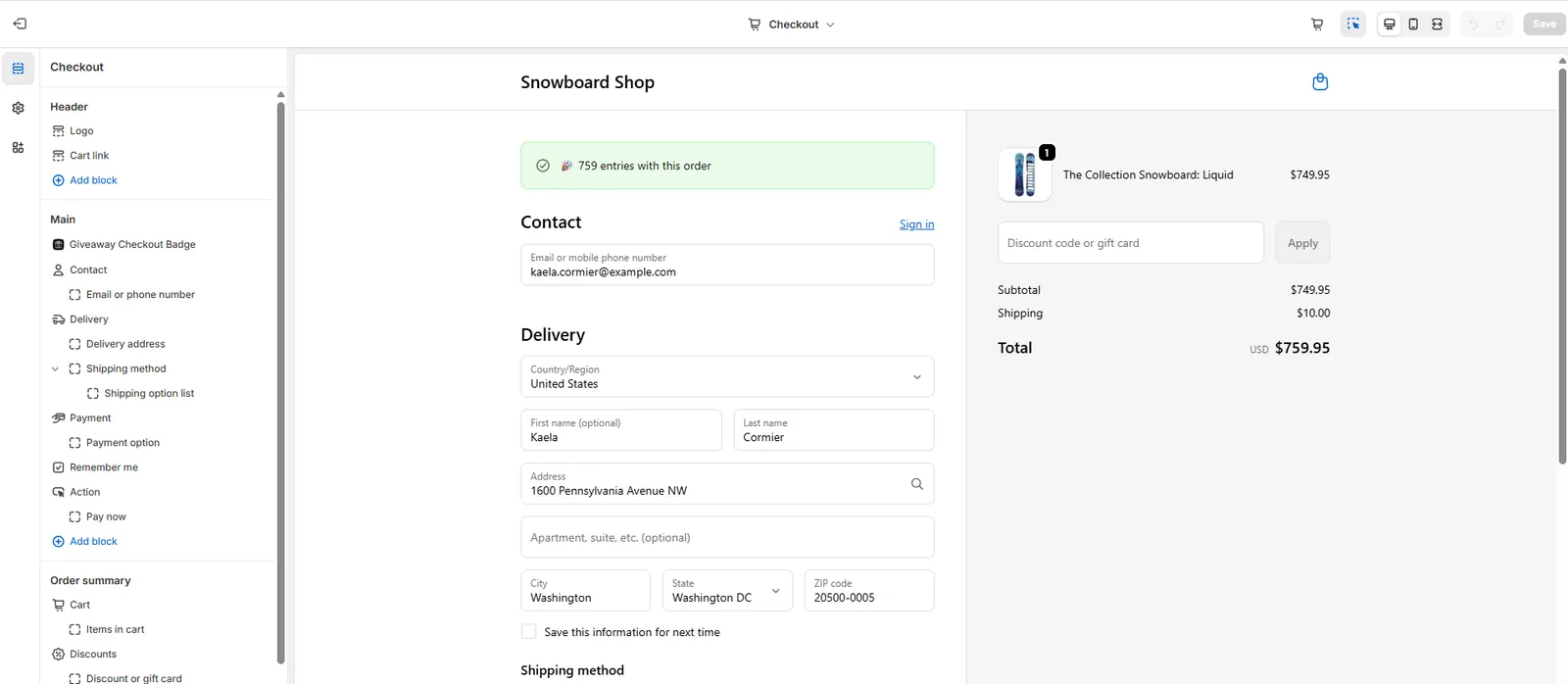
When configured correctly, customers will see a badge displaying the number of giveaway entries they earned from their purchase. This provides immediate positive feedback and encourages future purchases.
💡 Pro Tip
The checkout and thank you page badges work best when combined with other entry-earning features. Consider also adding the entries badge to your product pages and cart to create a complete incentive system throughout the purchase journey.