Your Purchase Entries Page
Overview
Create a dedicated page where customers can view their purchase-based giveaway entries. This enhances transparency and encourages customers to track their progress in your giveaway campaigns.
Installation Steps
-
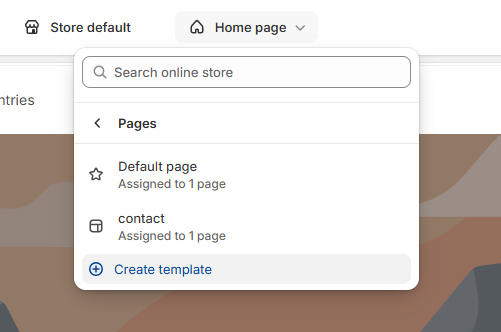
Edit Your Theme and Click on Pages
Open the Shopify theme editor and navigate to the Pages section
-
Add a New Template
Create a new page template and add the "Your Purchase Entries" block from the Apps section
-
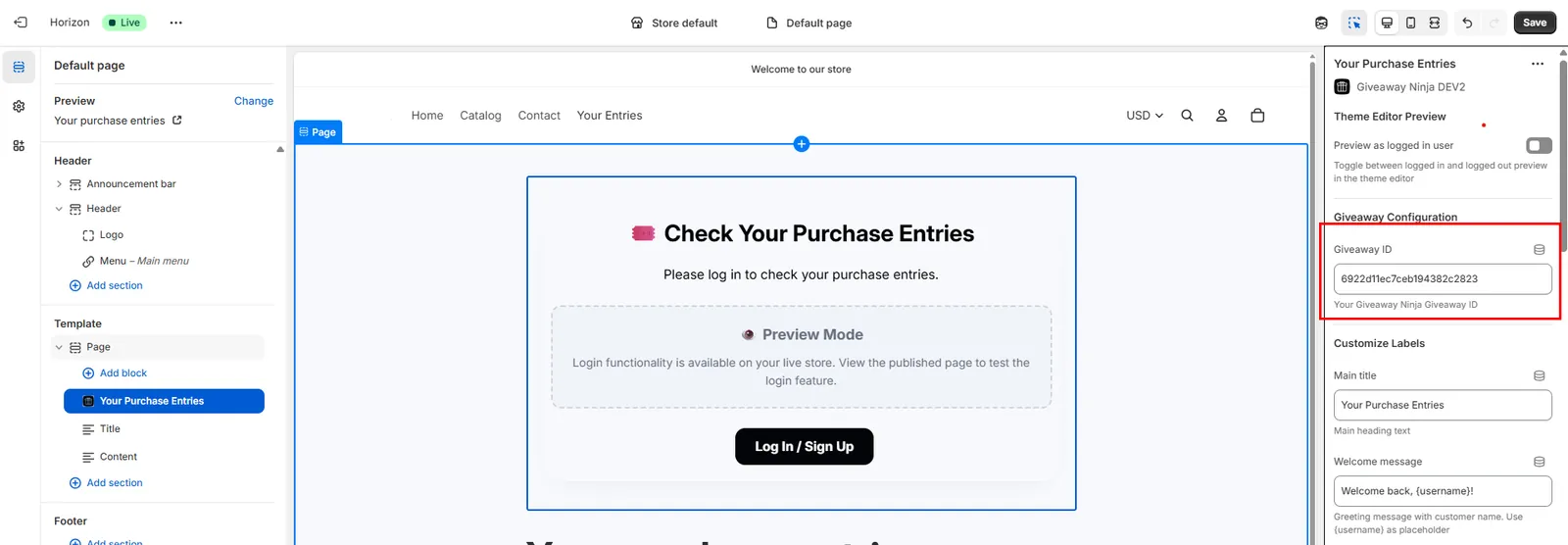
Enter the Giveaway ID
In the block settings, enter your Giveaway ID (you can find this in the Giveaway Editor under Global Settings)
-
Customize the Settings
Adjust the appearance and labels to match your brand (see customization options below)
-
Assign the Template to a Page
Create a new page (e.g., "My Entries") and assign it to use your new template
-
Add the Page to Your Menu (Optional)
For easy access, add the new page to your store's navigation menu under "Online Store" → "Navigation"
👁️ Previewing Your Page
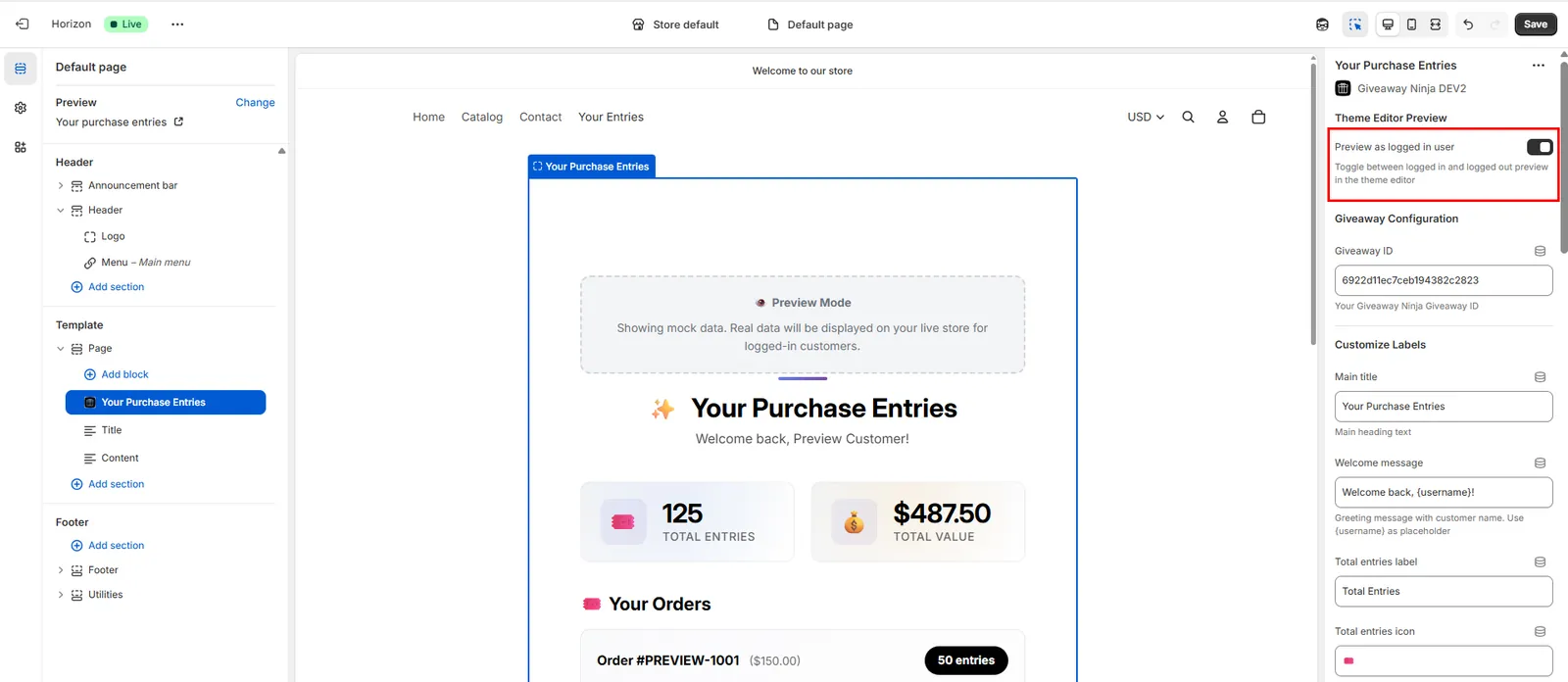
Want to see how the page looks before going live? In the theme editor, enable the "Preview as logged in user" toggle in the block settings. This will show you mock data with sample entries, orders, and stats - exactly how it will appear to your logged-in customers. This preview mode works even when you're not logged in, making it easy to test different settings and styling options without affecting real customer data.
Customization Settings
Once you've added the block, you can customize the following settings:
Theme Editor Preview
- Preview as logged in user - Toggle this to preview how the page looks for logged-in customers in the theme editor. When enabled, you'll see mock data including sample orders, entries, and total values to help you visualize the final appearance
Customize Labels
- Main title - The main heading text (default: "Your Purchase Entries")
- Welcome message - Greeting message with customer name. Use {username} as placeholder (default: "Welcome back, {username}!")
- Total entries label - Label for total entries count (default: "Total Entries")
- Total entries icon - Emoji or symbol for total entries (default: "🎫️")
- Total value label - Label for total purchase value (default: "Total Value")
- Total value icon - Emoji or symbol for total value (default: "💰")
- Loading text - Text shown while loading data (default: "Loading your entries...")
- Orders section title - Title for the orders list section (default: "🎫️ Your Orders")
- Order label - Text before order number (e.g., "Order #1234")
- Entry label (singular) - Text for single entry (e.g., "1 entry")
- Entries label (plural) - Text for multiple entries (e.g., "50 entries")
Login Prompt Settings
For non-logged-in users:
- Login heading - Heading shown to non-logged-in users (default: "🎫️ Check Your Purchase Entries")
- Login prompt message - Message shown to non-logged-in users
- Login button text - Text for the account login button (default: "Log In / Sign Up")
Color Styling
- Text color - Main text color for the entries panel
- Background color - Background color of the entries panel
- Border roundness - Controls the roundness of all elements (0-40px, 0 = square corners)
Button Styling
- Button text color - Applies to all buttons
- Button background color - Applies to all buttons
Advanced Customization
- Custom CSS - Add custom CSS to further style the block. Use
.giveaway-containeras the base selector
💡 Pro Tip
Link to this page from your order confirmation emails or in your customer account section to encourage engagement and repeat purchases. Customers love seeing their progress and knowing exactly how many entries they've earned!