Entries Badge
on Product Pages
Show customers how many giveaway entries they'll earn directly on the product page. The badge automatically updates when they select different variants or change quantity, creating an incentive for bulk purchases.
Prerequisites
Before adding the Entries Badge, ensure you have a giveaway with a "Make a Purchase" entry action configured.
1) Open the Theme Editor and locate the Product Page
From your Shopify Admin, navigate to Online Store > Themes, then click Customize to open the theme editor.
In the theme editor, navigate to a Product Page by selecting it from the pages dropdown or by browsing to a product.
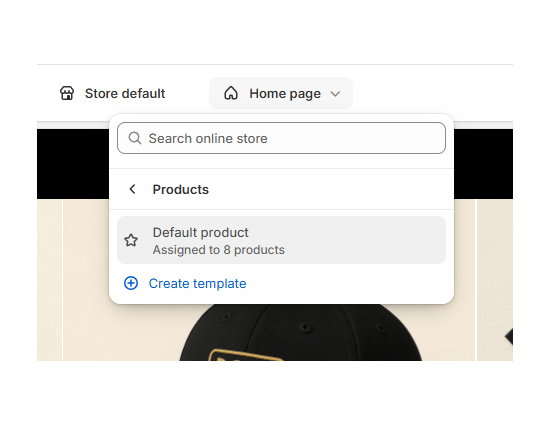
2) Locate the position and add the Entries Badge block
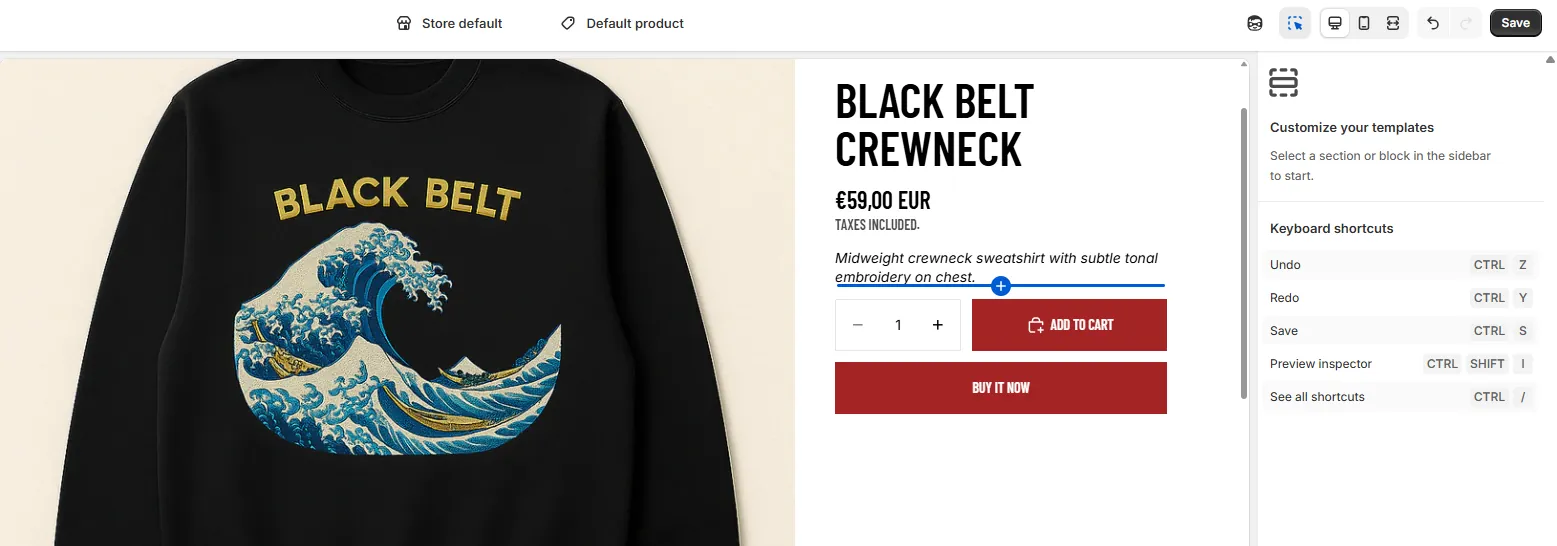
Scroll through your product page template and locate the position where you want to add the Entries Badge (typically near the product price or add to cart button).
Click on the + button to add a new block at that location.
3) Select the Entries Badge app block
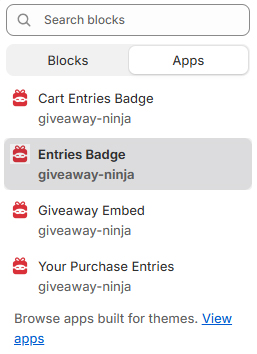
Click on Apps in the block selection menu.
Locate and select the "Entries Badge" block from Giveaway Ninja.
4) Configure the Giveaway ID
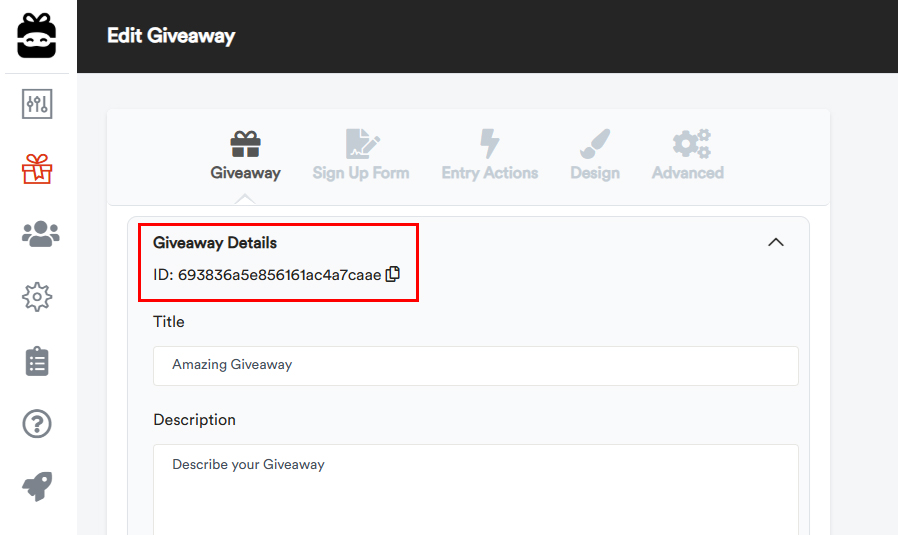
Open the Giveaway Ninja Campaign editor and click on GIVEAWAY.
Locate and copy your Giveaway ID from the Giveaway Details section.
Back in the theme editor, paste the Giveaway ID into the API Configuration section of the Entries Badge app block settings.
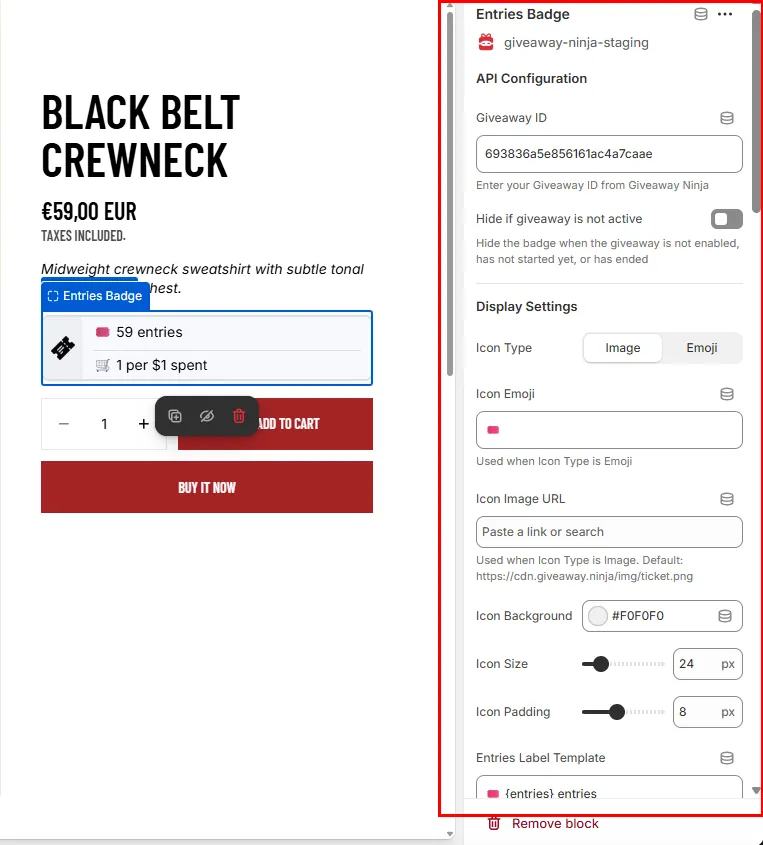
Important Note
If the app block appears and then disappears on Shopify, please click SAVE in the theme editor first.
Also ensure that "Hide if giveaway is not active" is disabled in the API Configuration settings if you want the badge to show during testing.
5) Customize the Entries Badge
The Entries Badge offers extensive customization options to match your store's design and giveaway mechanics. Below are the main settings you can configure:
API Configuration
- Giveaway ID - Your unique giveaway identifier (required)
- Hide if giveaway is not active - Automatically hide the badge when the giveaway is disabled, hasn't started yet, or has ended
Display Settings
- Icon Type - Choose between Image or Emoji
- Icon Emoji - Set custom emoji when using Emoji icon type (default: 🎟️)
- Icon Image URL - Use a custom image URL when using Image icon type
- Icon Background - Background color for the icon
- Icon Size - Adjust icon dimensions (16-64px)
- Icon Padding - Internal spacing around the icon (0-20px)
- Entries Label Template - Customize the text display (use {entries} as placeholder, e.g., "🎟️ {entries} entries")
- Font Size - Text size (10-30px)
- Position - Block, Inline, Float Left, or Float Right
- Font Weight - Normal or Bold
- Text Alignment - Left, Center, or Right
Styling
- Border Width - Thickness of the border (0-10px)
- Border Color - Custom border color
- Border Radius - Rounded corners (0-20px)
- Background Color - Badge background color
- Text Color - Badge text color
- Horizontal Padding - Left and right internal spacing (0-30px)
- Vertical Padding - Top and bottom internal spacing (0-30px)
- Margin - External spacing around the badge (0-30px)
Block Templates
Customize how different entry rules are displayed:
- Product Quantity Rule Template - Template for quantity-based rules (use {entries} and {quantity} placeholders, e.g., "⭐ {entries} every {quantity} purchased")
- Product Amount Rule Template - Template for amount-based product rules (use {entries} and {amount} placeholders, e.g., "⭐ {entries} per ${amount} spent")
- Order Rule Template (Per Amount) - Template for order-level rules based on amount spent (e.g., "🛒 {entries} per ${amount} spent")
- Order Rule Template (Fixed) - Template for fixed entry orders (e.g., "🛒 {entries} entries per order")
Visibility Settings
- Show Total Entries - Display the total entries count
- Show Order Rules - Display order-specific rules (automatically hidden when giveaway is set to product-specific rules only)
- Show Product Rules - Display product-specific rules
- Time Booster Background - Background color for time booster displays
- Time Booster Text Color - Text color for time booster displays
- Time Booster Font Size - Font size for time booster text (10-30px)
Advanced Settings
- Enable Dynamic Updates - Automatically update entries when variant or quantity changes
- Quantity Input Selector - CSS selector for the quantity input field (for dynamic updates)
- Quantity Buttons Selector - CSS selector for quantity increment/decrement buttons (for dynamic updates)
- Custom CSS - Add custom CSS styles to further customize the badge appearance
Troubleshooting
Badge doesn't appear
Check:
- Giveaway ID is correctly entered ✓
- "Hide if giveaway is not active" is disabled (for testing) ✓
- Giveaway has "Make a Purchase" action configured ✓
- You've clicked Save in the theme editor ✓
- Ensure that the Giveaway Ninja App Embed script is enabled in the Theme App Embeds ✓
Badge shows incorrect entry counts
Verify:
- Giveaway rules are correctly configured in the Giveaway Ninja dashboard
- Product is eligible for the giveaway entries
- Dynamic updates are enabled if you want real-time calculation
Badge doesn't update with variant or quantity changes
Solutions:
- Ensure "Enable Dynamic Updates" is ON
- Check the Quantity Input Selector and Quantity Buttons Selector match your theme's selectors
- Clear browser cache and test again
- Check browser console (F12 → Console) for JavaScript errors