How do I embed a giveaway on a Wix site?
Quick answer
Copy the embedding code from the Embedding Code section of your Giveaway Ninja giveaway. In the Wix Editor, add a blank page, then go to Add Elements > Embed Code > Embed HTML and paste the code. Resize the element to fit, preview the page and point your giveaway's share URLs to it.
By default, Giveaway Ninja runs your giveaway in a pop-up widget. To improve the experience, you can create your own landing page and embed the giveaway on it.
A dedicated landing page has three benefits:
- It's easier to promote the giveaway with a direct URL (for example, mywixsite.com/giveaway)
- Faster onboarding: users can join without clicking the launch button
- Brand experience: you can build a page that fits your brand and marketing goals
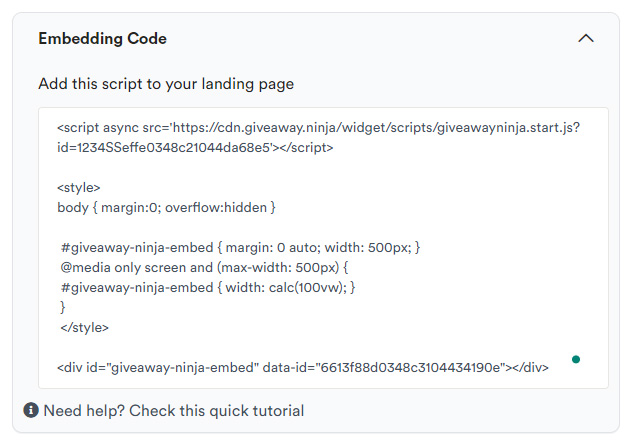
1) Copy your embedding code
Edit the giveaway, expand the "Embedding Code" section and copy your embedding code.
2) Create a page on Wix
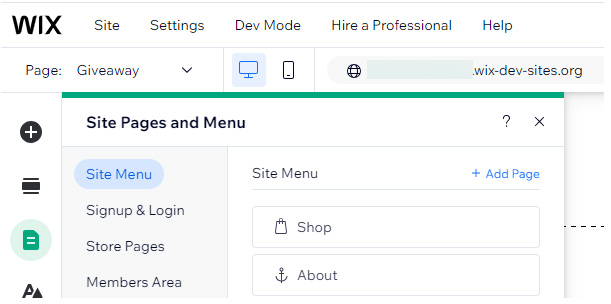
Open your Wix Editor, click the "Site and Pages Menu" option, then "Site Menu" and then "Add Page".
3) Add a blank page
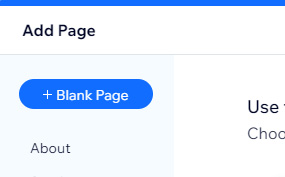
Choose a blank page so the giveaway is the only content.
4) Add an "Embed HTML" element
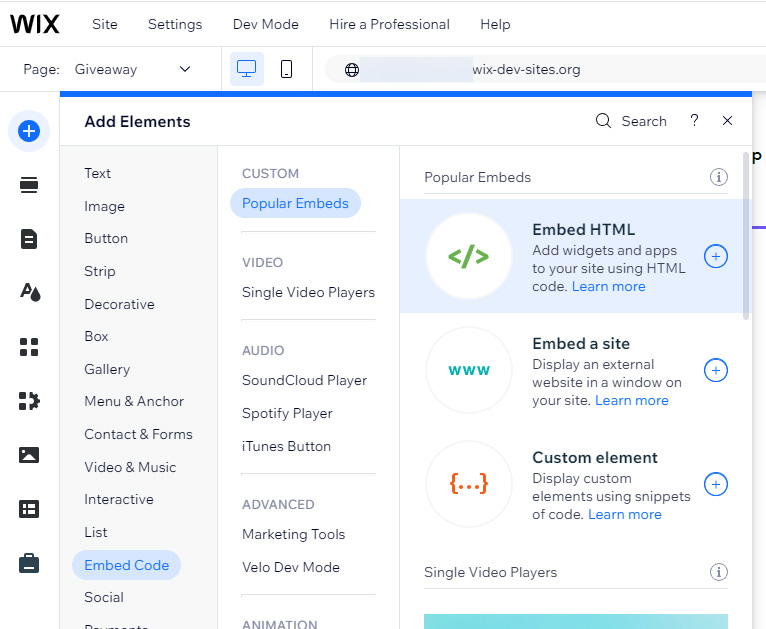
Click "Add Elements" > Embed Code > Embed HTML.
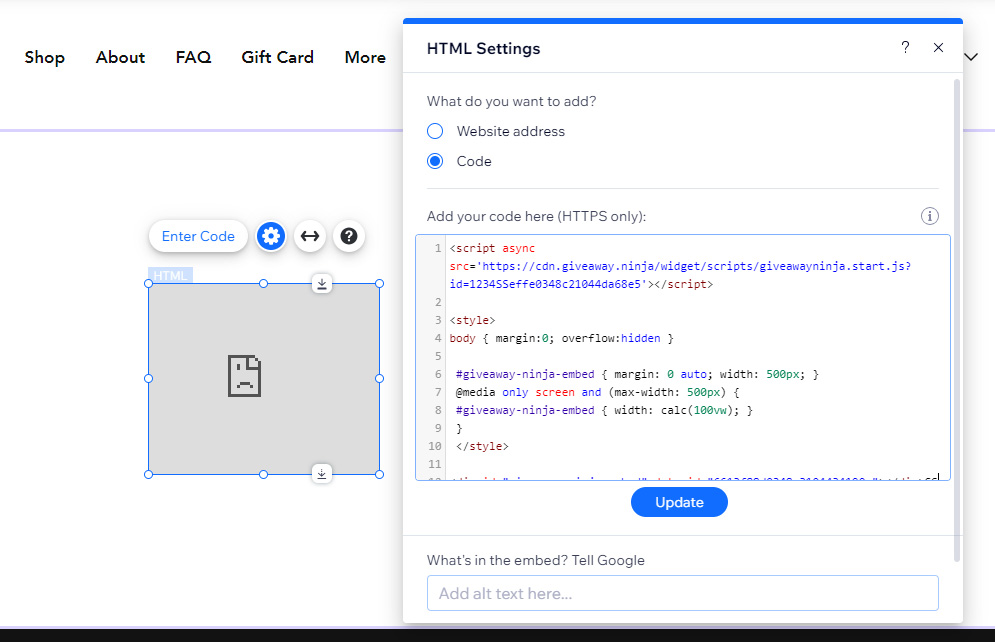
5) Paste your embedding code
Paste the embedding code and click UPDATE. Adjust the embed size to fit the giveaway content.
6) Preview your landing page
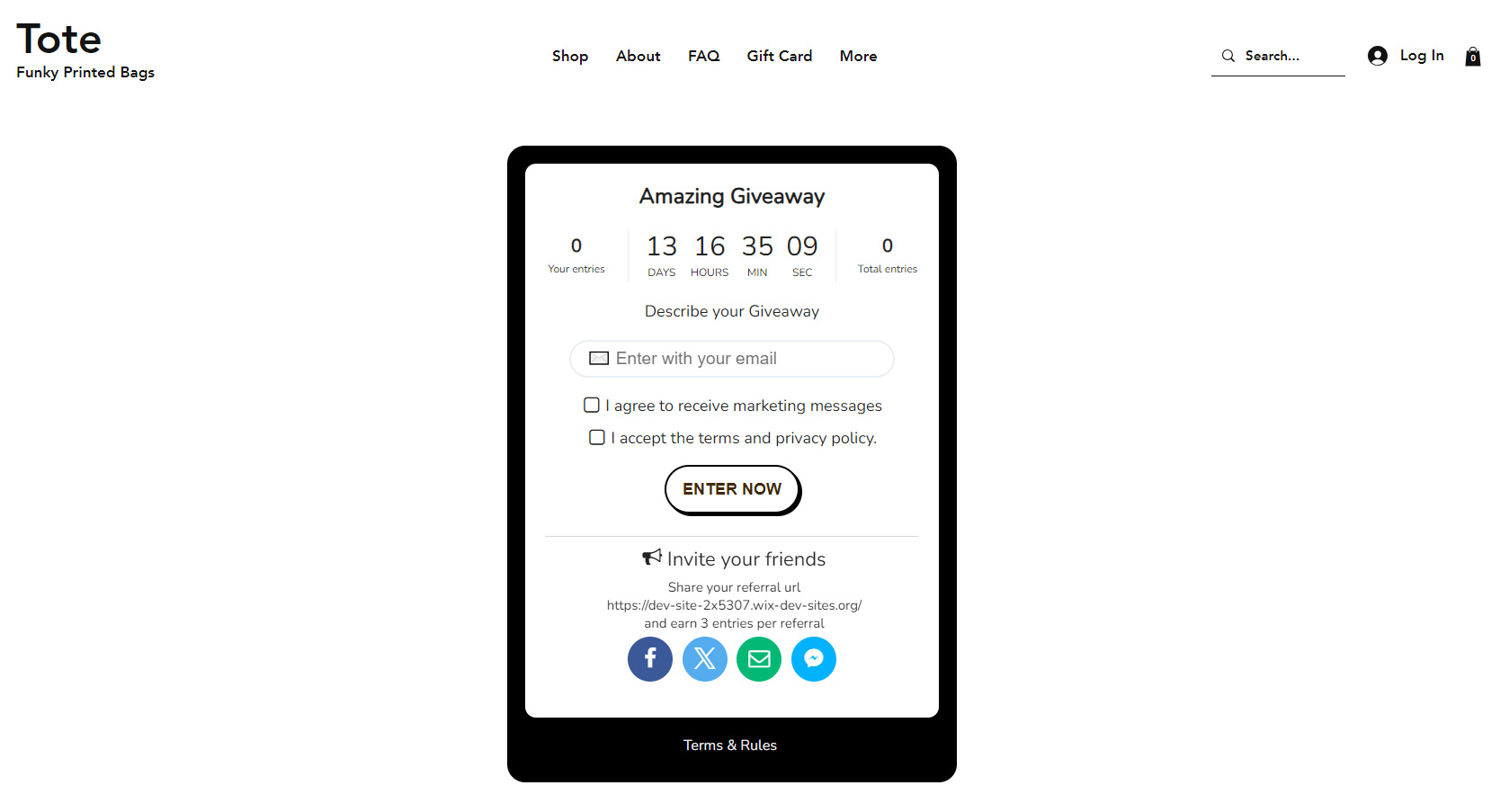
Preview your page and fine-tune your HTML and CSS settings as needed.
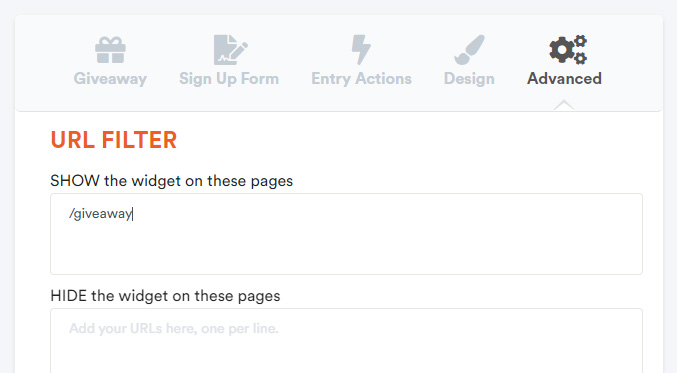
Quick tip: use the PAGE FILTER option to show the giveaway (as an embed) only on the dedicated landing page.
7) Update your URLs
If you use the Refer-a-Friend action, edit your giveaway and make sure all the shareable URLs lead to your landing page (for example, https://mywixsite.com/giveaway).
You may want to check:
- Shop URL under the Giveaway Details settings
- URL to share under the Refer-a-Friend action
Done
You can now share the giveaway with your audience 😎
On Shopify instead? See how to embed a giveaway on a Shopify landing page.
People also ask
Can I use Giveaway Ninja with Wix?
Yes. Paste the giveaway's embedding code into an Embed HTML element on any Wix page. On Shopify, embed the giveaway on a Shopify landing page instead.
Why isn't the giveaway showing on my Wix page?
Check the code sits in an Embed HTML element, the campaign is enabled and no page filter hides it. See why your giveaway isn't showing up.
Can I run a giveaway without any website?
Yes. Publish it on its own page at giveaway.ninja/enter/your-slug from the Direct URL section. See how to set up a giveaway on Shopify.
Where should referral links point?
To your Wix giveaway page. Update the Shop URL in Giveaway Details and the URL to share in the Refer-a-Friend action. Get more ways to drive traffic to your giveaway.
Still stuck?
Our support team is available 24/7 and always replies. Send us a message and we'll help you sort it out.